PSF Guard 0.13 is out. It can now estimate what each rig will finish on a given night, build integrated mosaics, and send stacking or RC-Astro processing to another computer. It also uses the GPU for more of the work between opening a light frame and producing a finished stack.
Much of that processing comes from Seiza, which has reached 0.49.0. The native desktop apps have their own release numbers: Seiza for Mac 0.9.1 and Seiza for Windows 0.9.2. Their latest update focuses on choosing calibration frames, inspecting flats and showing which masters each light will use.
PSF Guard manages catalogs, grades and plans across imaging sessions. Seiza’s apps let you open and process image files directly; its CLI and libraries provide the same underlying imaging tools for scripts and other applications.
Plan the next clear night
PSF Guard’s new Rigs › Nights view puts predicted Target Scheduler and Director schedules beside clear hours and Moon conditions. Select a night, then a target block, to see what the scheduler would choose and why. Each filter run shows its minimum separation from the Moon.
You can mark a rig unavailable, limit it to part of a night, or apply a mark to every rig at a site. Optional cloud forecasts and a dew-point limit narrow the hours available for planning. An activated plan’s Visibility view uses the rig’s other assigned work when estimating its completion date.
These are estimates, and night planning remains in early beta. Availability marks do not stop a telescope. The server also has support for optional Director weather holds between exposures, but those need a later Director plugin update; the published 0.1.0.3 Beta 1 does not include them. Forecasts do not replace an observatory’s safety monitor.
The night-planning guide covers site forecasts, one-night Director overrides and persistent Target Scheduler changes.
Build the mosaic, then process its colour
PSF Guard can now integrate overlapping panels into one FITS image per channel, preserving each frame’s calibration. Those channel mosaics become the inputs for RGB, LRGB or narrowband colour. Colour calibration solves the integrated canvas itself, rather than treating a panel’s sky coordinates as though they describe the whole mosaic.
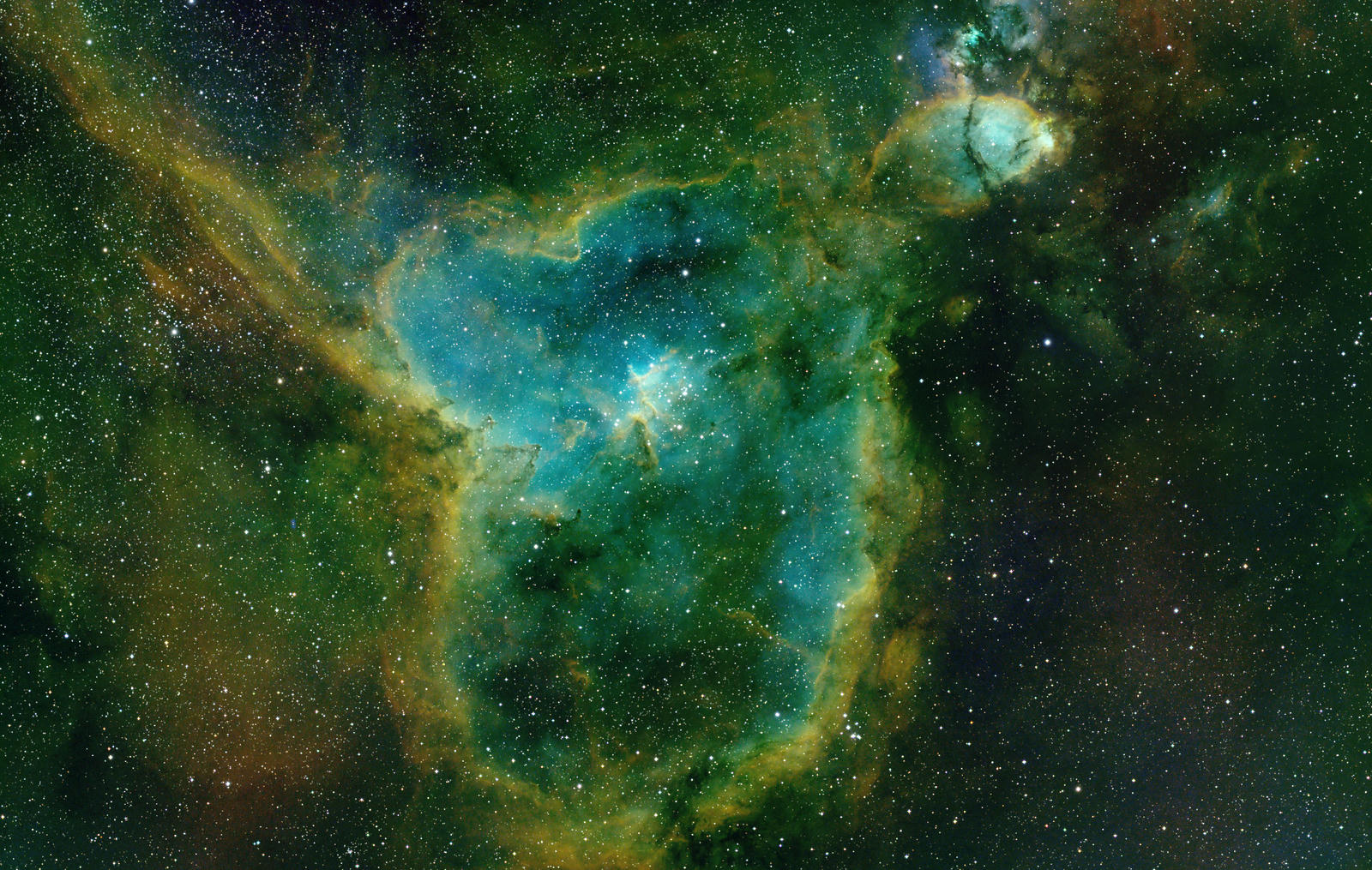
Heart and Soul, composed from integrated channel mosaics. This example uses panel stacks binned 4× per axis, with Gaia colour calibration skipped.
Supported GPUs accelerate debayering, star detection, resampling and integration. A Live stack preview updates while a channel builds. Open Settings › Performance › GPU to choose the GPU passes; computers without a supported GPU use the CPU.
Processing now follows numbered steps, with separate branches for the nebula and RGB stars. You can sharpen the RGB stars before extraction, stretch them independently and reduce them when restoring them to the narrowband image. Continuum subtraction has its own controls and fit report. Existing colour previews keep their settings.
The stack inspector also has more room for the image, star measurements, pixel readouts and sky overlays. Press M for pixel values or R for RA/Dec, then move the pointer over the image.
Put another computer to work
A remote worker can build channel and mosaic stacks or run BlurXTerminator, NoiseXTerminator and StarXTerminator. Each type of work has its own policy: use this server, prefer workers with a server fallback, or require workers. RC-Astro processing needs the tools, models and licenses on the worker.
The desktop worker stays in the menu bar or system tray after its window closes. Windows and Linux services can start before login. Install the same PSF Guard release on the server and each worker; stack builds stay on the server until you change the policy. WBPP still runs on the server.
The worker guide covers setup and recovery, including the reverse-proxy upload limit that can otherwise refuse a large finished result.
Compare star measurements on the same terms
A star count or HFR depends on how the software detects and measures stars. Changing the crop, sensitivity or brightest-star limit can change the result even when the image has not changed.
Seiza 0.49 follows N.I.N.A.’s detector more closely and adds Hocus Focus 4 measurements, including the autofocus crop and brightest-star settings that also affect ordinary captured frames. With each rig’s profile settings, Hocus Focus 4 validation matched the recorded counts and HFR frame by frame on three rigs. This is not universal parity: the release notes still identify a low HFR result from N.I.N.A.’s High-sensitivity detector on one rig and work remaining on the Hocus Focus 3 detection stage.
PSF Guard 0.13 exposes the distinction. Image Information shows capture and scan measurements, marked N and P. Choose Stars and HFR in Scoring to select the source used for limits and comparisons. PSF Guard remains the default. You can also import a N.I.N.A. profile and say when its settings first applied.
Seiza 0.49: partial stacks and external processing
Since the 0.36 update, Seiza has gained GPU stacking, shared mosaic canvases across filters and project-analysis reports. The latest release adds the first phase of distributed stacking: process sessions as partial stacks on one reference grid, then combine them. Saved files carry the information needed to resume the work.
There is an important distinction from stacking every light together: rejection runs within each session. Combining partial stacks does not repeat rejection across all the original exposures. This is a core-library capability, separate from PSF Guard 0.13’s remote workers; it does not mean the desktop apps now have a distributed-stacking control.
Seiza also adds access to PixInsight’s MLDenoise through an installed PixInsight, from Rust, C and Python. The RC-Astro exchange now preserves uncovered samples instead of letting a missing pixel turn an entire NoiseXTerminator result into missing data. These integrations use installed external tools; they do not include those tools or their licenses.
The 0.49 release notes cover the new APIs and breaking changes for library users.
Calibration in the desktop apps
Both desktop apps currently use Seiza core 0.48.0. Their latest releases include the newer calibration workflow, but not the 0.49 additions described above.
For batch stacking, you can supply a mixed folder of lights and calibration frames, individual files, or a calibration library. Seiza identifies frame types, grades calibration frames, groups flats and darks, and chooses matches for each light. You can inspect the proposed masters and change the choices before starting. Each light keeps its own calibration session, including in an expanded mosaic.
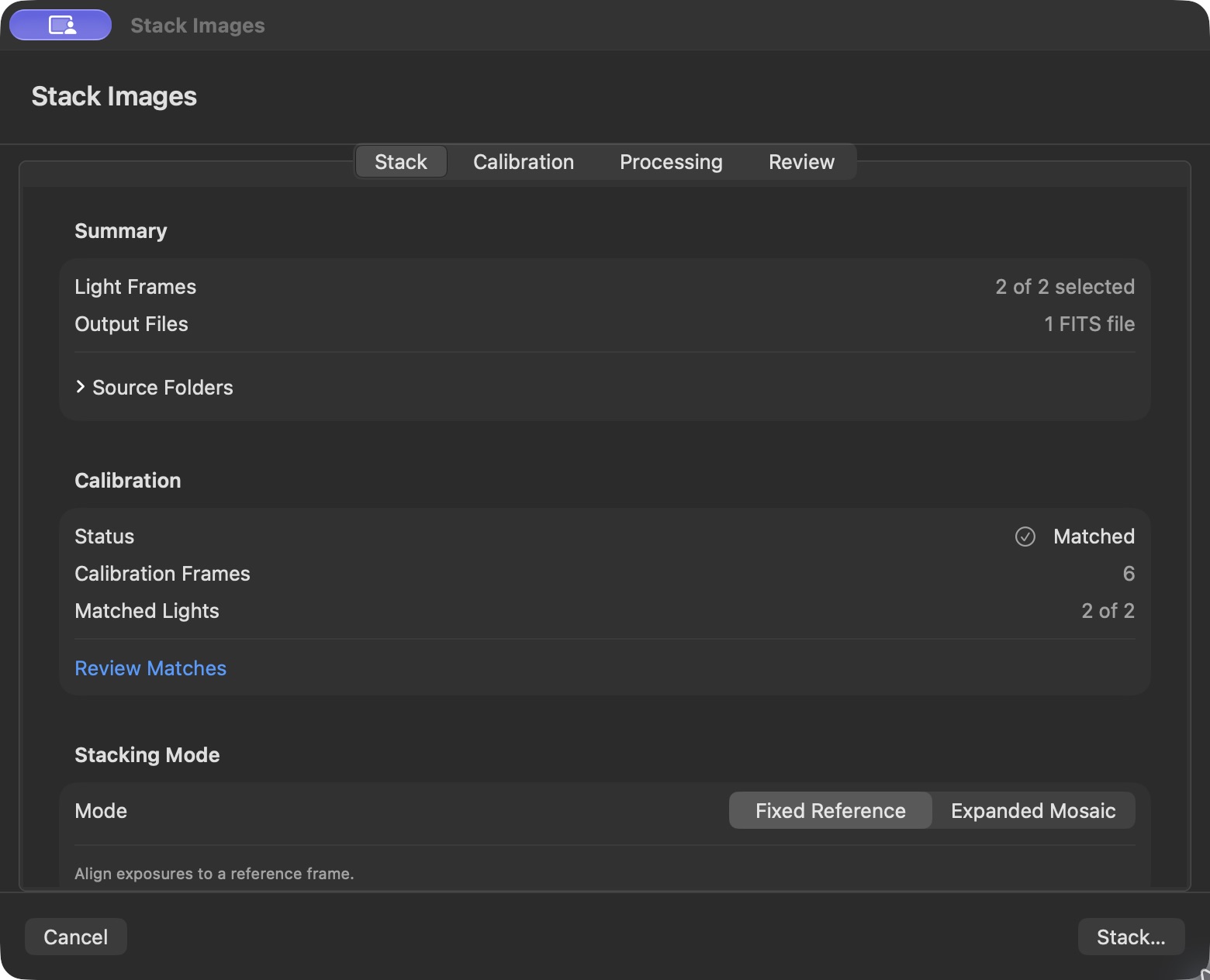
The Mac app’s Stack tab shows the light count and calibration coverage before the run starts. Review Matches opens the detailed choices.
On Mac 0.9.1, start with File › Stack Images…, review the summary, then click Stack… and choose an output destination. Automatic grading, matching and master creation do not require a trip through every settings page. Detailed controls remain available when you need them.
Windows gained the same per-light review in 0.9.1. Inspect Flat shows linear levels, clipping, noise, dust and vignetting; the Inspector can also read source pixels under the pointer without decoding an entire large mosaic. These batch-calibration changes do not replace the existing live folder-stacking workflow.
Windows 0.9.2 fixes installation on machines without the Visual C++ Redistributable. The MSI now includes the native runtime and can recover from the affected 0.9.1 installation failure. If setup failed with error 1723, use 0.9.2.
Before updating PSF Guard
Read the 0.13 upgrade notes. Stacks rebuild once when next opened or refreshed, and affected star measurements update on the next quality scan. Scoring defaults now live on the server: the first editor to open the updated app saves their defaults for everyone. Review them under Settings › Review › Grading & display.
Direct Target Scheduler connections remain deprecated, but existing ones still work in 0.13. For a new setup, open Settings › Databases & rigs › New / import and choose Import a local TS file or Use the PSF Guard Sync plugin. A later update will create a PSF Guard catalog for existing direct connections and keep captures, plans and grades in sync. That automatic migration is not part of 0.13. Separate catalogs let us add features to PSF Guard and support new Target Scheduler versions.
Downloads
- PSF Guard 0.13.0: desktop apps, CLI packages and server releases.
- Seiza core and CLI 0.49.0: command-line packages, with Rust and Python installation options in the Seiza guide.
- Seiza for Mac 0.9.1: signed and notarized universal app for Apple silicon and Intel, macOS 15 or later.
- Seiza for Windows 0.9.2: signed x64 MSI.