PSF Guard 0.14 puts your rigs’ current activity and tonight’s plan in one view. It also shows when targets clear your rig’s horizon and which saved plans still need activating. If you stack in PSF Guard, you can now choose Seiza for noise reduction.
Check what your rigs are doing
Open Rigs › Live to see each rig’s connection, active projects, weather, and predicted work for the night. With the updated PSF Guard Sync plugin, Now shows the exposure and count or the current autofocus, slew, or wait. PSF Guard marks old reports as stale. Open History to check the last plugin contact or trace a failed Sync action. Live monitoring with Target Scheduler works through Sync. Director acquisition remains in early beta. Rigs, Sites & Live
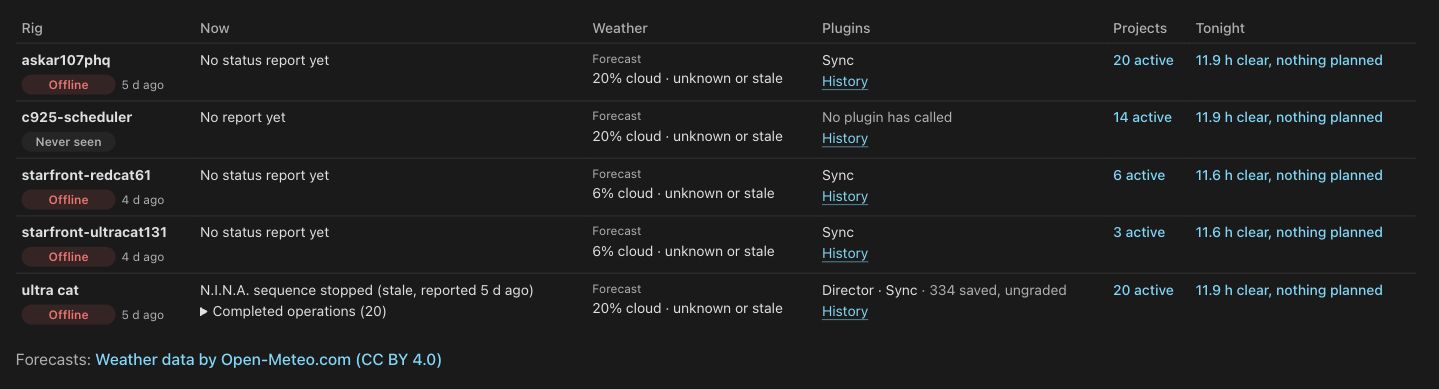
Live shows the last reported state for rigs that are offline or have yet to report.
Check when a target clears your horizon
Open Planning › Framing and turn on Sky in view. In Time range and overlay key, set how long the target needs to stay above the rig’s horizon and altitude limits during darkness. Now covers tonight and the next 30 nights. Season lets you move a 31-night window through the year. Year shows the sky that meets your threshold on at least seven nights. Framing guide
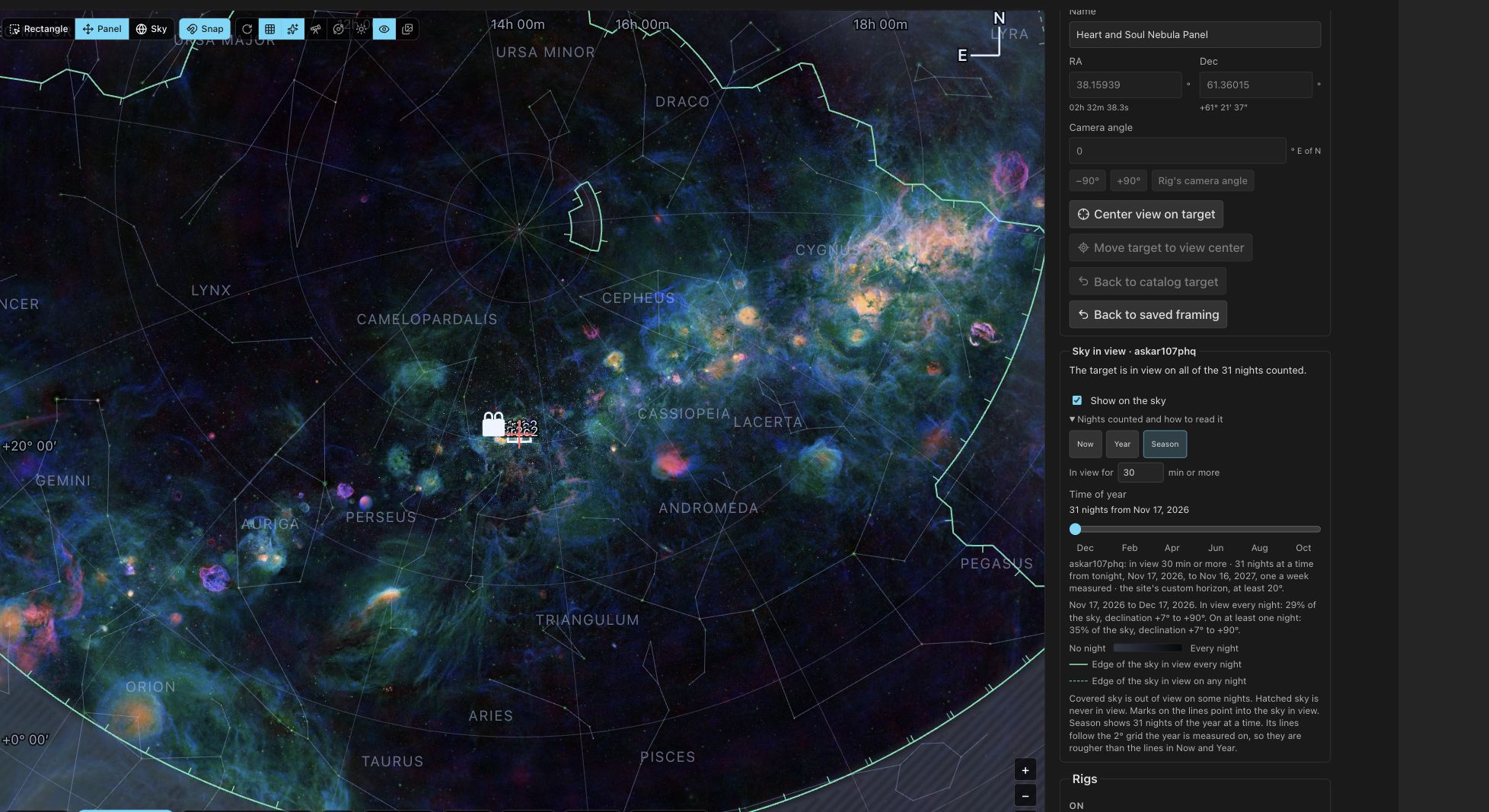
The selected rig has at least 30 uninterrupted minutes on the Heart Mosaic on all 31 nights in this example.
Start a plan and send it to your rigs
In 0.14.2, click New plan in the Library toolbar to start before you have images or a database. Click Create plan to open Framing, then enter the target. Add an objective before assigning your first rig. When you return to the Library, choose Show › Needs activating to find plans with changes the rigs haven’t received. Click Activate to review what PSF Guard will send. Planning guide
If several N.I.N.A. profiles share a Target Scheduler database, 0.14.1 keeps each rig’s exposure templates with its own profile. It also reads horizon files with repeated azimuths, using the highest altitude at each repeated point. 0.14 release notes
Reduce noise in a stack
Open Settings › Processing › Stacking › Processing tools and click Download both to install the Seiza model and ONNX Runtime. Then choose Seiza noise model under Noise reduction when processing a stack. Use Grain for fine speckle and Mottle for wider patches. If the runtime download failed on 0.14.0 or 0.14.1, update to 0.14.2 and retry. The new release checks PSF Guard’s mirror first. How Seiza’s noise model works
Before you update
Back up your planning data so you can return to 0.13 if needed. Update your stack workers with the server and update the Sync plugin for detailed sequence status. PSF Guard rebuilds affected stacks and calibration masters when it next needs them. Upgrade notes · Download PSF Guard 0.14.2